Starting an online store in 2026 doesn’t require technical expertise or business experience – we know because we’ve helped countless beginners build successful shops.
WordPress makes it easier than ever to create your first online store, even if you don’t have any experience with web design or eCommerce.
We use WordPress paired with Easy Digital Downloads to sell our own digital products with minimal hassle. And many WordPress users rely on WooCommerce, which is the largest eCommerce platform on the market and super straightforward to use.
The benefits of starting an online store are clear: flexible hours, low startup costs, and complete control over your business.
While getting started is simple, you’ll need guidance on the basics – from choosing the right platform to setting up payments. In this beginner-friendly guide, we’ll walk you through how to start an online store, step by step.
In this guide, we’ll walk you through each step, from choosing the right platform to building your online business to optimizing it for success.
What Is the Best Online Store Platform?
💡 Editor’s Note: In this article, we recommend WordPress.org + WooCommerce because they give you complete control over your online store. If you want to skip this section and jump straight to building your store, go ahead and start reading the tutorial. 😀
Starting an online store is exciting, but we know the first big question can feel overwhelming: which eCommerce platform should you use? We’ve helped thousands of store owners make this decision, so let’s make it simple for you.
Essentially, you have two main choices for building your online store. You can either go with WordPress.org and add an eCommerce plugin like WooCommerce or use a hosted platform like Shopify or BigCommerce.
Think of it like owning versus renting a physical store. With WordPress.org and WooCommerce, you will own your store completely. You choose your hosting, control all your costs, and can customize everything exactly how you want.
Using eCommerce solutions like Shopify is more like renting a store in a mall. While it’s easier to get started, you’ll have less control, and the platform often requires you to upgrade to a higher plan as your business grows. Not to mention, you’re limited to the features they offer.
You can read our comparison piece on Shopify vs. WooCommerce for more details. And here’s a quick comparison table of the different options for online stores:
WordPress.org + eCommerce Plugin | WordPress.org + eCommerce Plugin | Hosted Solutions (Shopify, BigCommerce) |
|---|---|---|
| 👍 Pros | • Complete customization control • Lower long-term costs • Own all your data and content | • Easier to set up • Built-in technical support • Regular automatic updates |
| 👎 Cons | • Initial setup takes longer • Responsible for updates • Need to handle security | • Higher monthly costs • Limited customization options • Locked into the platform’s features |
| Best For | • Growing businesses wanting full control • Budget-conscious store owners • Unique or complex store needs | • Beginners wanting quick setup • Hands-off management • Simple stores with basic needs |
Overall, our advice is to go with WordPress.org for eCommerce. We’ve had plenty of experience using this platform, and we’ve never felt locked in or limited by what we can create. Plus, you won’t face surprising cost increases as your store grows.
WordPress also lets you choose the perfect eCommerce plugin for your specific needs.
Want to sell physical products? WooCommerce has you covered. Looking to sell digital downloads? Easy Digital Downloads works perfectly. Or need to create a membership site? Check out MemberPress.
In this complete guide on how to start an online store, we will use WordPress.org with WooCommerce, as it’s the most popular eCommerce plugin. Here are the simple steps we will cover, and you can use the links below to skip to your preferred topic:
Ready? Let’s get started.
- Step 1: Choose a Product to Sell
- Step 2: Design Your Brand
- Step 3: Register Your Business
- Step 4: Set Up WordPress Hosting & Domain Name
- Step 5: Install WordPress
- Step 6: Set Up Your WooCommerce Store
- Step 7: Select and Customize Your Online Store’s Design
- Step 8: Add Products to Your Online Store
- Step 9: Set Up Payments, Taxes, and Shipping
- Step 10: Optimize Your Online Store
- Step 11: Master WordPress to Grow Your Business
- Step 12: Take It Further
- FAQs About Starting an Online Store
- Video Tutorial
Step 1: Choose a Product to Sell
The first and perhaps most important step in launching your WordPress online store is deciding what to sell. Your product choice shapes everything about your business, from your brand identity and website features to your marketing strategy and operational needs.
To find the right online business idea, you can start by asking yourself these questions:
- What interests you deeply? Choose a product category you’re passionate about. Running an online store takes time and effort, so selling something you care about will help you stay motivated and knowledgeable about your products.
- Is there a gap in your local market? Sometimes, the best eCommerce business ideas come from bringing existing products to markets where they’re not yet available. Look around your area or region for unmet needs.
- Do you see a problem you can solve? Maybe you’ve noticed a common frustration that needs a solution. Market research can help confirm if other people share this pain point and would pay for a solution.
- Can you improve on existing products? If similar products exist, think about your unique angle. Maybe you can offer better quality, lower prices, or target a specific audience that’s being overlooked.
After identifying potential products, you’ll need to decide how you’ll produce, source, and manage them. The table below shows some of your main options:
| Business Model | What Is It? | Requirements | Best For |
|---|---|---|---|
| 🎨 Homemade Products | Make products by hand using your personal skills and creativity | • Working space and basic tools • Creative skills and time • Quality materials | Creative people who want to sell unique, handmade items |
| 📦 Wholesale | Buy products in bulk at lower prices to resell | • Storage room for inventory • Money to buy stock upfront • Organization skills | Sellers who want proven products and can handle storage |
| 🖼️ Print-on-Demand | Put your designs on products that get made after each sale | • Basic design skills • Computer and internet • Photo editing knowledge | Artists and creators who want to start with low risk |
| 🚚 Dropshipping | Sell products that others store and ship for you | • Research and marketing skills • Customer service • Basic tech setup | Beginners who want to start with minimal investment |
| 💻 Digital Products | Create and sell downloadable items like courses or eBooks | • Expert knowledge • Content creation skills • Basic tech understanding | Experts and creators who want passive income potential |
| 🏭 Manufacturing | Partner with factories to make your product ideas | • Product designs • Larger starting budget • Patience for development | Businesses ready to create unique products at scale |
Additionally, you should consider how to price your eCommerce products properly. This decision affects everything from your profit margins to your target market.
For more information, we have broken down all the proven pricing strategies in our beginner’s guide to eCommerce pricing models.
Once you know what product you want to sell, you can move on to the next step.
Step 2: Design Your Brand
At this stage, you know what product to sell and have an idea of your target customers. Now, it’s time to create a brand that catches their attention and builds trust. Your brand design will affect everything from your website to your packaging, so it’s worth getting right.
Let’s start with your business name. You will want something memorable that clearly communicates what you do. It should also be easy to spell, remember, and type into a browser.
Take our name, WPBeginner, for example. It’s simple and straightforward, instantly telling visitors that we help WordPress beginners.

Before settling on a name, check if it’s available as a domain name. Ideally, your business name and domain name should match exactly. This makes it easier for customers to find and remember your store.
Also, research whether your chosen name might have trademark issues. Take time to search trademark databases like WIPO and ensure your name has not been taken by someone else.
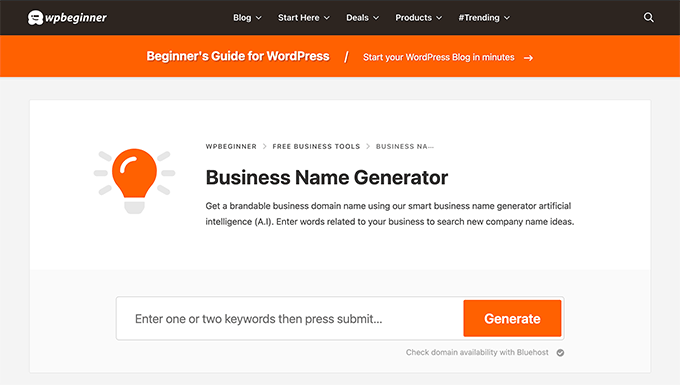
If you need help brainstorming, you can try our free business name generator.
Next comes your logo design. Modern AI-powered logo makers have made professional logo design affordable for everyone.
Remember, the best logos are often the simplest. Think of Nike’s swoosh or Apple’s apple. These iconic symbols prove that effective logos don’t need to be complicated to be memorable.
You can head over to our beginner’s guide on how to make a logo for more information.

Your color scheme is another crucial element. The colors you choose will appear everywhere, from your website to your social media profiles and marketing materials.
Different colors evoke different emotions and send different messages to your customers.
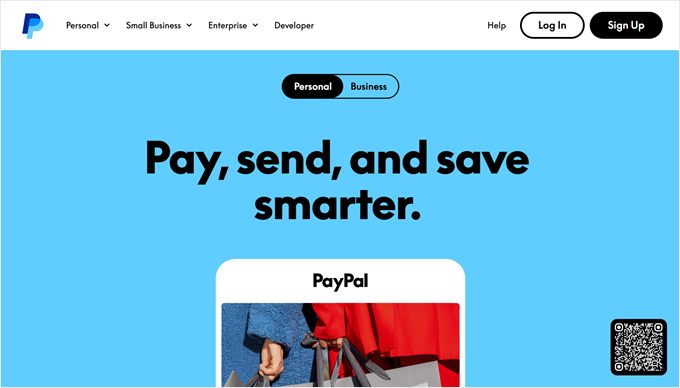
For example, blue often represents trust and professionalism. That’s why companies like PayPal and Visa use it as their primary color, as it helps customers feel secure when making transactions.
Finally, you will need to consider your typography (the fonts you’ll use). Good typography makes your content easy to read while reinforcing your brand personality.
For instance, serif fonts like Times New Roman often promote tradition and reliability, while sans-serif fonts like Arial suggest modernity and simplicity.
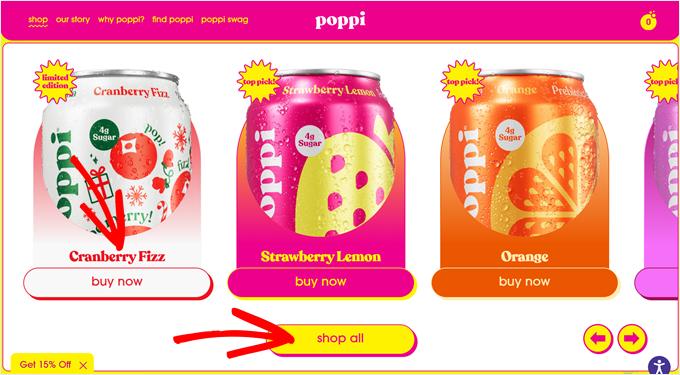
We recommend choosing one font for headings and other important elements to grab attention and another for the body text to maintain readability. Here’s a good example by Poppi:
Once you’ve finished designing your branding, you can move on to actually registering and setting up your online business.
Step 3: Register Your Business
✋ Important Note: The following information is for general guidance only and is not legal advice. We strongly recommend consulting with local authorities, a legal professional, or an accountant to make sure your business complies with relevant regulations in your area.
You’re almost ready to learn how to start an online store, but first, you need to make your business official.
Some business owners choose to do this after launching their WordPress site. This allows them to test their market and product ideas with minimal investment. Others prefer registering before launch so they can claim business expense deductions from the start and avoid potential legal issues.
While the exact process varies by location, here are the key things you’ll typically need:
📝 Business license – This is your official permission to operate. Most areas require at least a basic business license. Depending on what you sell, you might need additional permits.
💰 Tax registration – You’ll need a tax ID number to collect and pay sales tax.
⚖️ Business structure – Decide whether you’ll operate as a sole proprietorship, limited liability company (LLC), or corporation. Each has different legal and tax implications.
🏦 Bank account – Keep your personal and business finances separate by opening a dedicated business bank account. This makes accounting easier and looks more professional to customers.
🛡️ Business insurance – Even small businesses can face unexpected challenges. This insurance can protect your online store from various risks and potential losses.
💳 Business credit card – A separate credit card for business expenses helps track spending and build business credit.
Now that you have everything legally set up, you can move on to our detailed step-by-step guide on how to create an online store with WordPress.
Step 4: Set Up WordPress Hosting & Domain Name
Before you can start building your online store with WordPress.org, you need two essential things: a domain name and web hosting.
Think of launching your online store like opening a physical shop – you need both an address where customers can find you and an actual building to put your store in.
A domain name is what customers type into their web browser to visit your store. For instance, when someone wants to find our website, they type in wpbeginner.com.
Domain names usually cost about $15 per year, and you can choose different endings like .com, .shop, or .store.
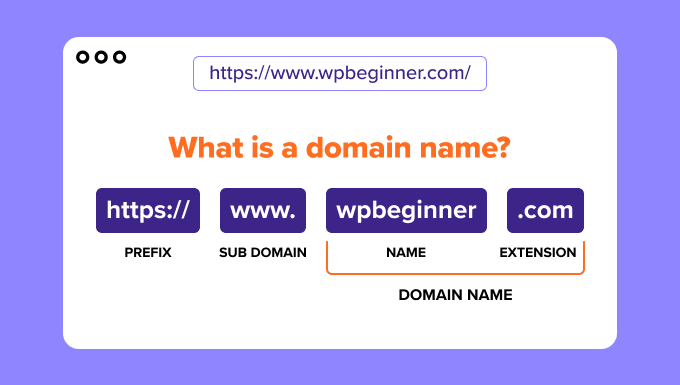
Web hosting, on the other hand, is like renting space for your store’s contents. It’s where all your product photos, descriptions, and everything else live. Just like physical stores need different sizes of buildings, websites need different types of hosting based on their size and needs.
Looking at all the hosting options out there can make your head spin. There’s shared hosting, managed WordPress hosting, VPS, and many more.
We’ve tested dozens of hosting companies over the years, and for new WordPress online stores, we consistently recommend Bluehost. Here’s why:
- They give you a free domain name for your first year (saves you that $14.99!).
- Bluehost handles your security certificate (SSL) automatically and for free. This is mandatory for any online store in 2026 to protect customer data and accept payments securely.
- They’ve been WordPress.org’s recommended hosting since 2005.
- They’re affordable with prices that work for new business owners.
- Their Online Store plan comes with WordPress + WooCommerce pre-installed, so some of your website setup is already taken care of.
I’ve been recommending Bluehost since 2012, and their commitment to quality has only improved over the years.
I host several personal and business websites on Bluehost. Their ease of use and reliability make them a go-to choice for me.
Whether you’re just starting or looking to grow your online presence, Bluehost offers a solid hosting platform to build on.
To learn more about this web hosting provider, you can read our complete Bluehost review.
Great news! We’ve arranged a special Bluehost deal for WPBeginner readers. You’ll get your domain name free, plus a big discount on hosting. Just click below to get started or check out our Bluehost coupon code.
→ Click Here to Claim This Exclusive Bluehost Offer ←
Note: If you use our Bluehost link, we do earn a commission – but here’s the thing: you don’t pay anything extra. In fact, you’ll pay less thanks to our special discount arrangement. While we could partner with any hosting company, we only recommend services we actually use and trust ourselves.
Let’s go ahead and purchase your domain and hosting. After clicking on our Bluehost link, you need to click on the yellow ‘Get Started Now’ button.
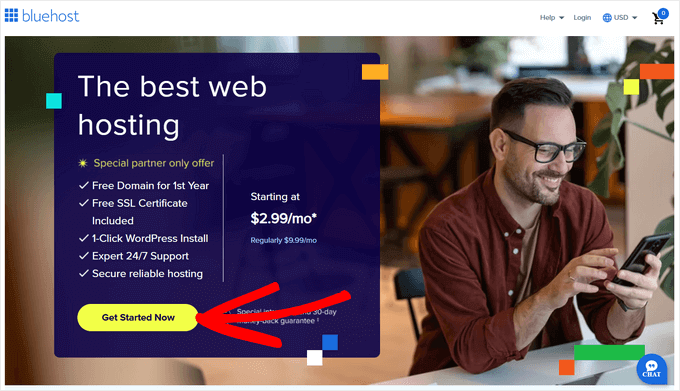
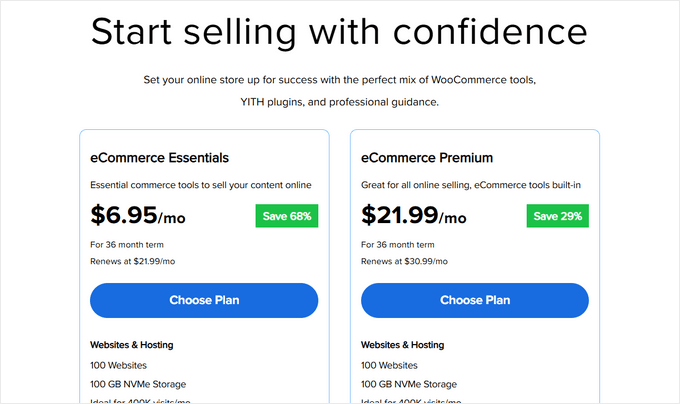
You’ll see different hosting plans on the next page.
Since you’re building an online store, we recommend the eCommerce Essentials plan. It comes with everything you need to start selling, including WooCommerce already installed. Just click ‘Choose Plan’ to select this plan.
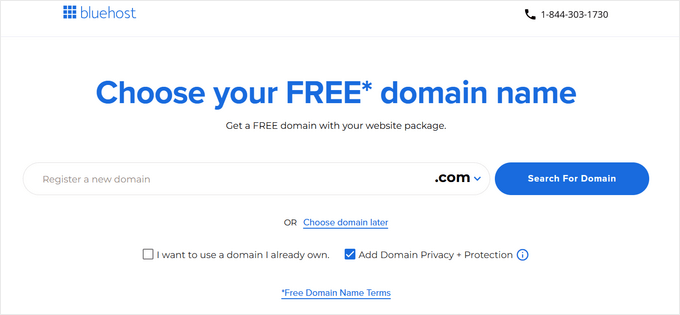
Now comes the fun part – choosing your domain name. You’ll see two options: creating a new domain or using one you already own.
For a new domain, simply type your desired name in the box. Already have a domain? There’s a separate section where you can enter it.
We strongly recommend going with a .com domain if it’s available. Most people automatically type .com when entering web addresses. However, if .com is taken, you can check out our guide to alternative domain extensions for other professional options.
Once you’ve chosen a domain name, just click ‘Search For Domain’ to continue.
Lastly, you can continue to the checkout page, where you will need to add your account information and payment details to complete the process.
Once you have completed your purchase, you can go to your email inbox, where you’ll find your Bluehost login details. This will let you log in to your web hosting dashboard to manage your website.
Step 5: Install WordPress
Here’s the best part about using our Bluehost link: WordPress and WooCommerce come pre-installed with your hosting. Bluehost created this automatic setup specifically for people who don’t want to deal with technical details.
Getting to your new WordPress site is straightforward. Just sign in to your Bluehost account, find the ‘Websites’ section in the left menu, and click ‘Edit Site.’ That’s it – you’re in!
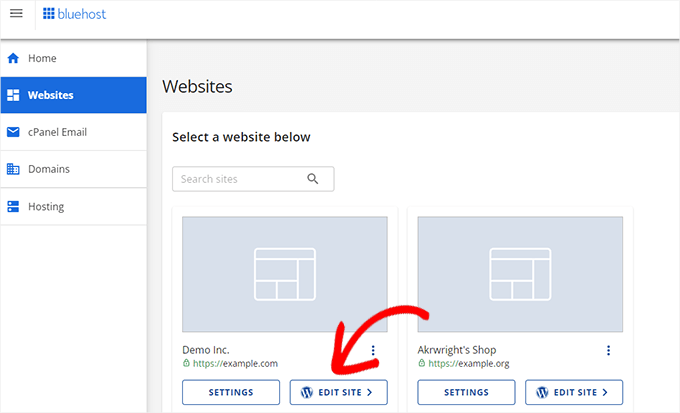
You can also type your domain name followed by /wp-admin/ in your web browser (like mystore.com/wp-admin/), and it’ll take you straight to your WordPress dashboard. This is your WordPress login URL.
Using another hosting company like SiteGround, Hostinger, or HostGator? No problem. Check out our WordPress installation guide, which includes detailed instructions for all major WordPress hosting providers.
With WordPress ready to go, we can move on to the exciting part: setting up WooCommerce.
Step 6: Set Up Your WooCommerce Store
If you have WooCommerce pre-installed, you will most likely see the WooCommerce setup wizard immediately after logging in to your WordPress dashboard.
But if not, don’t worry. You can read our WooCommerce made simple tutorial, which will walk you through the installation process.
Once you have installed the WooCommerce eCommerce plugin in WordPress, you can start the setup wizard by clicking ‘Set up my store.’
You can technically skip this step, but we don’t recommend doing that, as this setup wizard will automatically create your WooCommerce store pages for you. This way, you don’t have to make them from scratch.
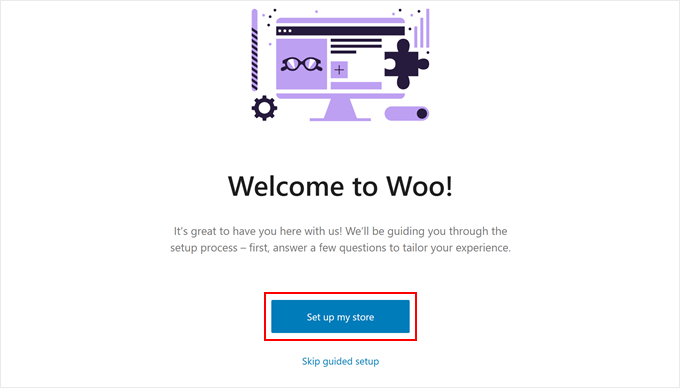
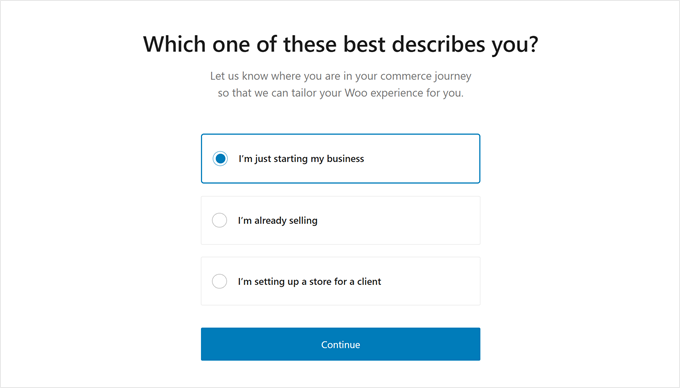
On the next page, WooCommerce will ask a question about you as an online business owner.
If you’re just starting out, then you can pick the ‘I’m just starting my business’ option.
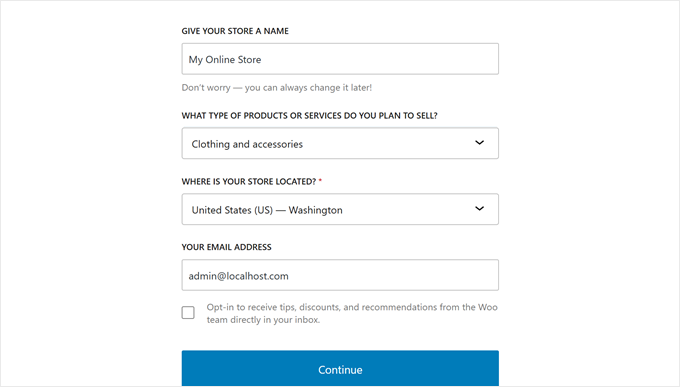
Next, you need to provide WooCommerce with some information about your business. This includes your business name, type of products, store location, and business email address.
Once you have entered all these details, click ‘Continue.’
On the next page, WooCommerce will show you some free WooCommerce extensions that you can choose to install.
You can click on the ones you plan to use and click ‘Continue.’ Alternatively, you can click on the ‘Skip this step’ button.
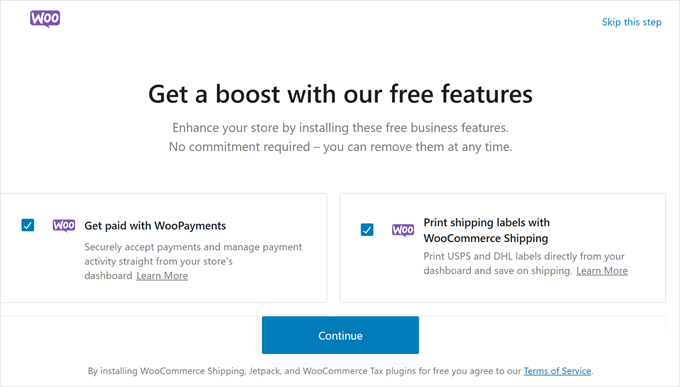
Now, you will have to wait a few minutes for the plugin to be installed.
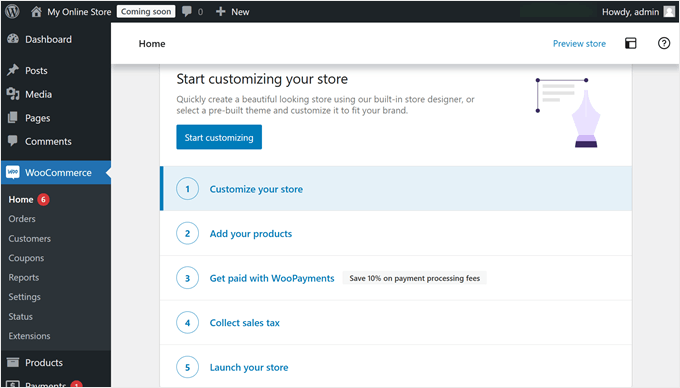
After the setup is complete, you will be directed to the WooCommerce plugin page, where you’ll see a checklist of things to do to build your online store.
Step 7: Select and Customize Your Online Store’s Design
As you can see in the previous section, the first step to building your WooCommerce store is choosing the right WordPress theme.
Think of a theme as your store’s entire design package. It controls everything from how your products look to your customers’ journey throughout your WordPress online store.
While WordPress offers thousands of themes, not all of them work well for online stores. You need a theme specifically built for WooCommerce to ensure your products look great and your checkout process works smoothly.
That’s why we’ve created a handpicked list of the best WooCommerce themes to help you choose.
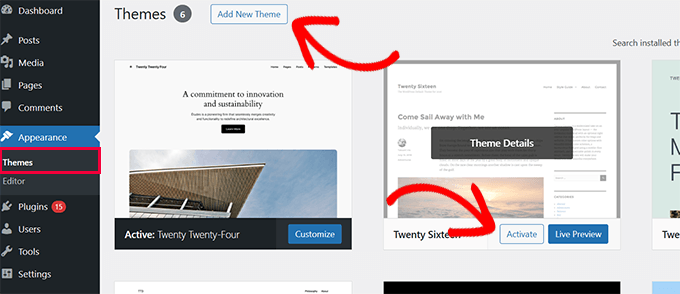
Installing a WordPress theme for your online store is easy. Simply go to Appearance » Themes in your WordPress dashboard and click ‘Add New Theme’. From there, you can browse and install any theme you like.
When it comes to customizing your theme, WordPress gives you two options: the classic theme customizer or the newer full-site editor for block themes.
We have detailed instructions on how to use both in our ultimate guide on how to edit a WordPress website.
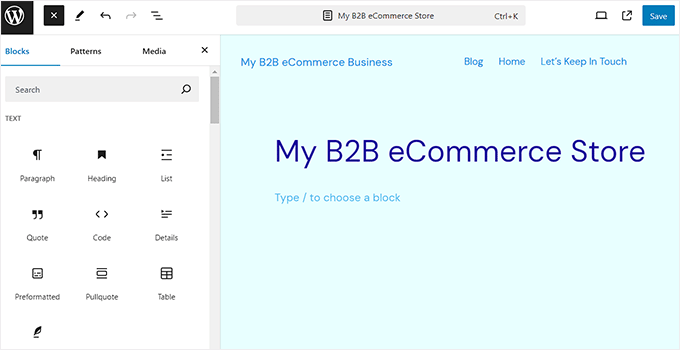
Both work fine, but honestly? We prefer using SeedProd’s theme builder instead.
Why SeedProd? It’s like having a professional designer at your fingertips. You get a simple drag-and-drop page builder anyone can use, over 350 ready-made website designs to start with, and an AI website builder that can create your entire store design in seconds.
Plus, some of our partner brands have used SeedProd to create their entire websites, and loved the results. For more information, check out our detailed SeedProd review.
Here’s a great example of a SeedProd theme for an online clothing store:
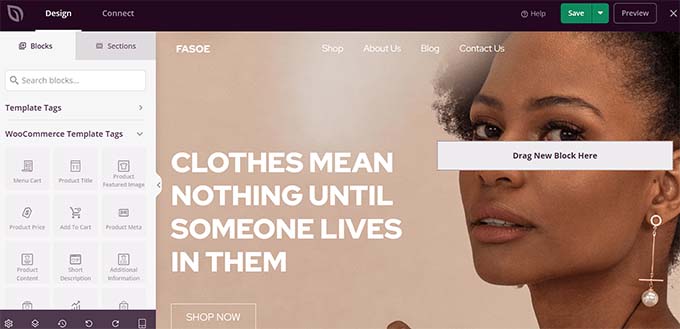
With eCommerce website builders like this, you can customize your online store to look and function exactly how you want. It’s also search engine optimization (SEO) friendly, so you can optimize your store for search engines, making it easier for potential customers to find your products.
Stacey Corrin, Lead Writer for SeedProd
 Stacey Corrin, Lead Writer for SeedProd
SeedProd even comes with an AI website builder that builds a custom theme for you in less than 60 seconds.
Want to see how fast it works? Just check out the video below:
Subscribe to WPBeginner
https://www.youtube.com/subscribe_embed?usegapi=1&channel=wpbeginner&layout=default&count=default&origin=https%3A%2F%2Fwpbeginner.com&gsrc=3p&ic=1&jsh=m%3B%2F_%2Fscs%2Fapps-static%2F_%2Fjs%2Fk%3Doz.gapi.en.vQiXRrxCe40.O%2Fam%3DAQ%2Fd%3D1%2Frs%3DAGLTcCMBxIGVyXSdvvcs43a64yHt_P7dfg%2Fm%3D__features__#_methods=onPlusOne%2C_ready%2C_close%2C_open%2C_resizeMe%2C_renderstart%2Concircled%2Cdrefresh%2Cerefresh&id=I0_1448178294715&parent=https%3A%2F%2Fwpbeginner.com
Whichever method you choose, make sure it matches your comfort level. The best website design tool is one that is easiest for you to use. Otherwise, you’ll feel frustrated fast by how complicated the tool is.
Also, don’t feel pressured to perfect your design right away. Theme customization is an ongoing process – you can always make changes as your store grows.
For specific help with store pages, check out our guide on how to edit WooCommerce pages.
Step 8: Add Products to Your Online Store
Let’s start adding products to your store. The process is simple: go to Products » Add New from your WordPress menu. Then, you can add your product title and description.
From here, you can follow our tutorial on how to add products to your online store in our WooCommerce made simple guide.
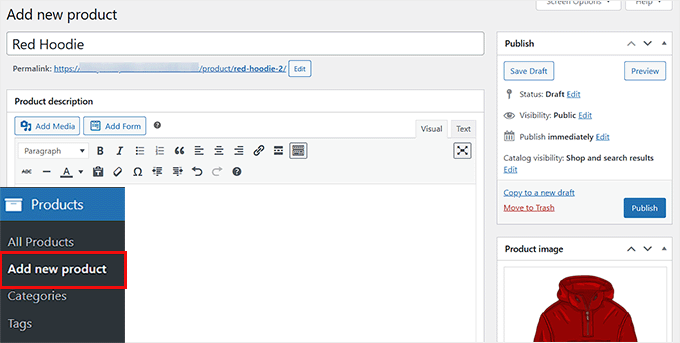
The guide covers everything from uploading product images to adding categories, tags, and attributes to your items.
Don’t have products ready yet? No problem! You can add sample data to see how your store will look with products. Our guide on how to add WooCommerce sample data shows you how.
If you have been listing your product information on a CSV spreadsheet, then you can also save time by importing them all at once. Our tutorial on importing and exporting WooCommerce products shows you how to avoid adding products manually.
Once you’ve added your products, here’s how to make them more appealing to customers:
- Add compelling product galleries with multiple images.
- Include short, catchy product descriptions that grab attention.
- Embed product videos to showcase features.
- Add a product Q&A section to address common customer questions.
- Set up product subscriptions for recurring sales.
- Prevent overselling with inventory controls.
Other than that, you will also need to optimize your WooCommerce product pages. Your product pages are like your digital showroom – they need to look professional and convert WooCommerce visitors into customers.
How you customize these pages will largely depend on your theme choice. Some themes include special features for product displays, while others only offer basic layouts.
This is where SeedProd really shines. It gives you powerful tools to enhance your product pages. For example, you can add customer reviews with star ratings to build trust and persuade potential buyers.
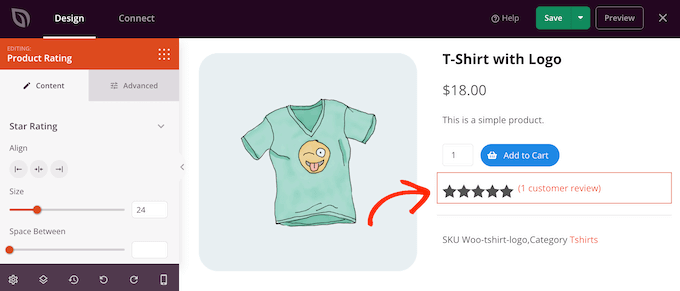
Other than that, you can display related products for upselling, recently viewed products to help users compare items, social buttons for users to share the products, and more.
Want to learn all the ways to make your product pages more effective? Check out our guide on how to customize WooCommerce product pages without code.
Step 9: Set Up Payments, Taxes, and Shipping
Now let’s get your online store ready to accept orders. First, let’s focus on setting up payments.
Head to WooCommerce » Settings and click the ‘Payments’ tab. You’ll start with basic options like Cash on Delivery, Checks, and Bank Transfers. WooCommerce also offers its own payment gateway called WooPayments.
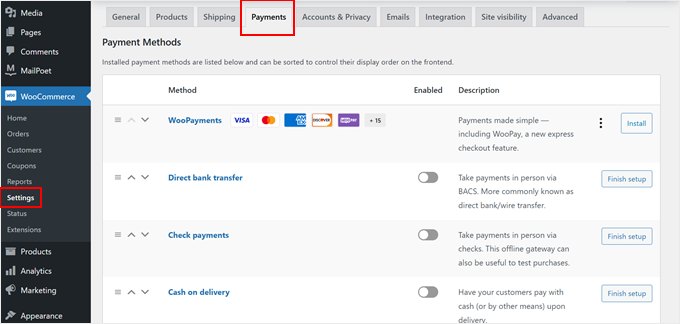
While WooPayments seems convenient, it’s not always the best choice. It’s not available in all countries, and some users report issues with payment holds.
We recommend exploring other options, like Stripe with FunnelKit’s free gateway plugin. This is often a better choice as it features a much simpler setup wizard that connects your account in seconds without you having to manually copy-paste technical API keys.
Beyond the easier setup, FunnelKit offers helpful features like one-click payments through Apple Pay and Google Pay. It also includes better troubleshooting tools, such as detailed order notes that explain exactly why a payment failed so you can help your customers complete their purchase.
You may also want to check out other WooCommerce payment options below:
- Allow users to choose from various payment options.
- Accept credit card payments.
- Set up installment payments for big-ticket items.
- Accept recurring payments for subscriptions.
- Add ‘Buy Now, Pay Later’ options.
- Enable digital wallets like Venmo.
Next, let’s tackle taxes. You can go to WooCommerce » Settings and click the ‘Tax’ tab.
In ‘Tax options’, you can choose whether to include tax in your prices, display tax in your shop and cart, what to base tax calculations on, and whether to add special tax classes.
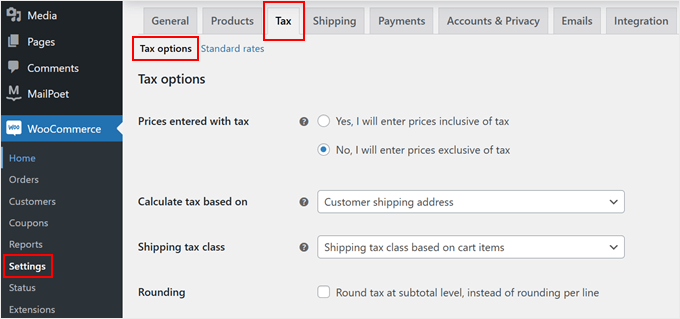
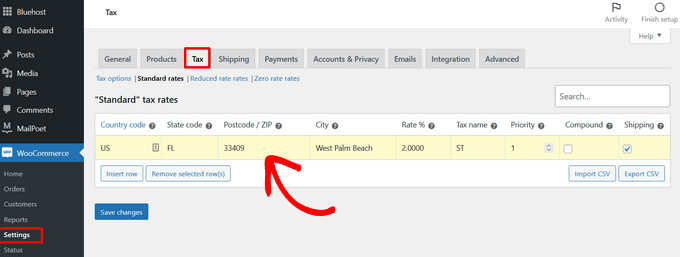
Then, under ‘Standard rates’, you can set up your tax rules. Go ahead and enter details like countries and regions you sell to, tax rates for each area, and names for different taxes (like GST or VAT)
However, manually entering tax rates can be extremely difficult, especially if you sell to multiple states or countries with different tax laws.
For most beginners, I highly recommend using a free tool like the WooCommerce Tax extension. Once installed, it handles everything for you by automatically calculating the correct sales tax at checkout based on your customer’s exact location. This saves you hours of work and helps you avoid costly mistakes.
Alternatively, if you have a long list of rates then you can save time by importing them via a CSV file.
Don’t forget to click ‘Save changes’ once you’re done.
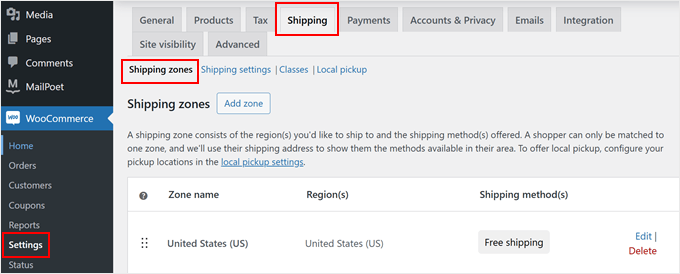
Finally, let’s set up shipping. You can find this under the ‘Shipping’ tab in WooCommerce settings.
You can use ‘Shipping zones’ to define where you’ll ship to and set different shipping methods for each area, like free shipping or flat rates.
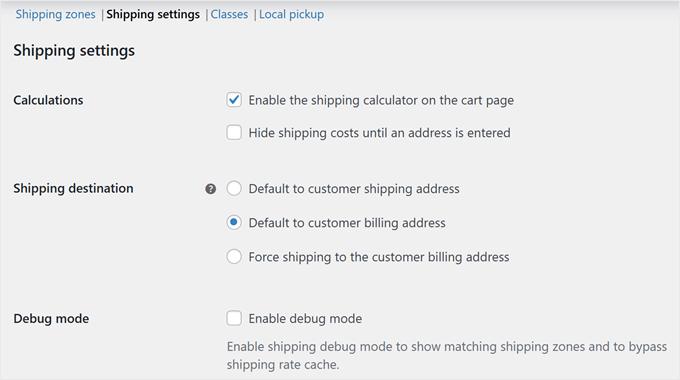
In ‘Shipping settings’, you can configure important options like whether to show the shipping calculator on the cart page, set the default shipping address (either shipping or billing address), and enable shipping debug mode if you need to troubleshoot issues
Remember not to hide shipping costs until checkout – this often leads to abandoned carts. Being transparent about shipping costs early in the shopping process helps build trust with your customers.
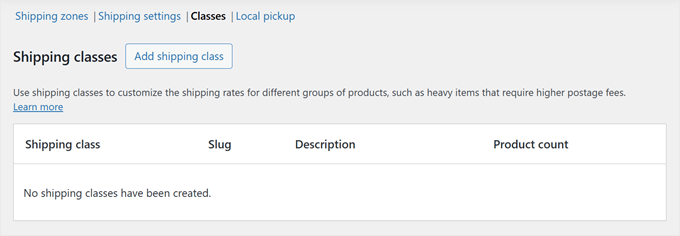
Under ‘Classes’, you can create special shipping rates for different products.
For example, feel free to set higher rates for heavier items or fragile products that need special handling.
To make it easier for customers to track their orders, consider adding a shipment tracking feature to your online store.
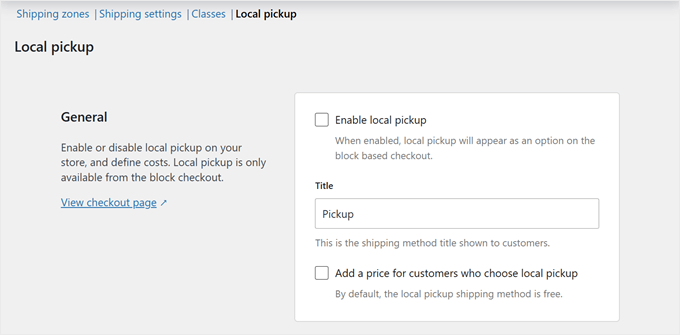
Offering local pickup? You can enable this option in the ‘Local pickup’ tab.
While it’s free by default, you can add some pricing based on your business needs.
Your online store is now ready to accept orders. But first, we need to fine-tune it to set up your business for success.
Step 10: Optimize Your Online Store
Before you launch your online store, we recommend setting up some key optimizations. While these aren’t mandatory, they can significantly boost your store’s success and help you provide a better shopping experience for your customers.
Let’s start with three must-have WordPress plugins that every WordPress online store needs:

Connects your store with Google Analytics
Why we love it: See customer behavior and sales data right in WordPress
Paid plans start from $99.60/yr

Optimizes your online store for search engines
Why we love it: Makes complex SEO simple with automated features
Paid plans start from $49.60/yr

Creates optimized checkout experiences
Why we love it: Reduces cart abandonment with smart checkout flows
Paid plans start from $99.50/yr
Beyond these essentials, here are other important optimizations to consider:
📞 Contact forms – Every professional store needs a way for customers to get in touch. We recommend WPForms for creating professional contact forms that build trust with customers.
🔍 Product search – Make it easier for potential buyers to look for their desired products. Use SearchWP to improve your WooCommerce search engine.
⭐ Social proof – Show potential customers that others trust your store. Use TrustPulse to display live sale notifications and Smash Balloon Reviews Feed to showcase reviews from platforms like Google and Trustpilot.
📱 Customer updates – Keep your customers coming back by staying in touch. We recommend PushEngage for browser notifications and Constant Contact for email marketing.
💾 Backups – Protect your store’s data and content from unexpected issues. We recommend Duplicator for creating reliable backups of your entire store.
🔒 Security – Keep your store and customer data safe from threats. We recommend Cloudflare for additional security features and better performance.
🌎 Translation – Reach more customers worldwide by making your online store multilingual. We recommend using Weglot to automatically translate your entire WooCommerce website.
You may also want to check out our expert picks of the best WooCommerce extensions to improve your online store.
Expert Tip: Ready to launch? Make sure you haven’t missed anything important by checking our ultimate eCommerce launch checklist.
Step 11: Master WordPress to Grow Your Business
WordPress is incredibly powerful and flexible, but we understand it can sometimes feel overwhelming, especially for beginners. That’s why we’ve created a lot of free resources to help you succeed.
At WPBeginner, we make WordPress easy to understand, even if you’re not tech-savvy. Here are all the ways you can learn from us:
Learning Resources
- WPBeginner Blog for detailed WordPress tutorials
- WPBeginner Videos for step-by-step visual guides
- WPBeginner Dictionary to easily understand WordPress terms
- WPBeginner’s YouTube Channel with regular video tutorials
Community Support
- WPBeginner Engage Facebook Group for free expert support in the largest WordPress group on Facebook
- Contact form for direct questions to our team
Tool Recommendations
- WPBeginner Business Tools for free growth resources
- WPBeginner Deals for exclusive WordPress discounts
- WPBeginner Solution Center to find the best WordPress plugins, themes, and tools
- WPBeginner Blueprint to see exactly which tools and plugins we use
We also have a guide to show users how to make the most out of WPBeginner’s free resources.
Many of our users also type their questions in Google and just add ‘wpbeginner’ at the end of it. This shows them related articles from WPBeginner. For example: ‘how to add product search in woocommerce wpbeginner.’
Step 12: Take It Further
At this point, you’ve learned the basics of how to create an online store with WordPress. But did you know your online store can be customized to sell practically anything?
Here are some exciting product possibilities we’ve helped our users sell:
- Furniture
- Photos
- Videos
- Digital art and graphics
- Fonts
- Online boutiques
- Audiobooks
- Music
- Online marketplaces
- Event tickets
- Excel or Google Spreadsheets
- Online thrift stores
- Car parts
The best part? WooCommerce makes selling any of these possible with the right plugins and setup – no coding needed.
Want to explore other options? Check out our detailed WordPress eCommerce setup guide for different product types.
FAQs About Starting an Online Store
Many of our users regularly reach out to us with questions about starting their own business with an online store. We have tried to answer some of the most frequently asked questions below:
Where do I find products to sell in my store?
Store owners source products in different ways. Some sell software, digital art, music, and other downloadable products.
Others source products from local or offshore vendors using online marketplaces like Alibaba or AliExpress. If you don’t want to handle your own inventory or shipping, then you could also look into starting a print-on-demand shop or dropshipping.
Can I start an online store for free?
Yes, some eCommerce platforms offer limited free trials, so you can start your online store for free, but after the trial is over, you’ll have to pay.
While WooCommerce itself is free, you’ll need a domain name and a web hosting account to run it, which will cost money.
How much does it cost to start an online store?
The cost of starting an online store depends on your business plan and budget. With our link, you can start with Bluehost for $2.99 per month and rely on free plugins and themes to limit your costs.
We recommend a business model where you start small and then spend money as your business grows.
Can I create an online store without shipping products?
Yes, you can. For instance, you can make an online store using dropshipping plugins, create an Amazon affiliate store, or make an eBay-like marketplace. You can also use the same online store to sell external products as well as your own products.
We hope that this tutorial helped you learn how to start an online store. You may also want to see these actionable tips to drive traffic to your new online store or see our comparison of the best business phone services for small businesses.